Detecting User Creation and Privilege Escalation on Windows
Objective
This article is a continuation of the Investigating User Creation and Privilege Escalation on Linux post, which focuses on alerting and reporting user creation and privilege escalation activities. In this part, we implement the same logic on Windows systems.
The use cases we are dealing with are the same as in the first part:
| Event type |
|---|
| Standard user creation |
| Standard user creation at unusual time (e.g., overnight) |
| Privilege escalation (admin rights assigned) |
| Privilege escalation at unusual time (e.g., overnight) |
Preparing
First, we need to enable the Audit Security Group Management option in the agent’s Group Policy Object (GPO).
To do this, navigate to:
Computer Configuration → Windows Settings → Security Settings → Advanced Audit Policy Configuration → Account Management
Then enable:
Audit Security Group Management → Success
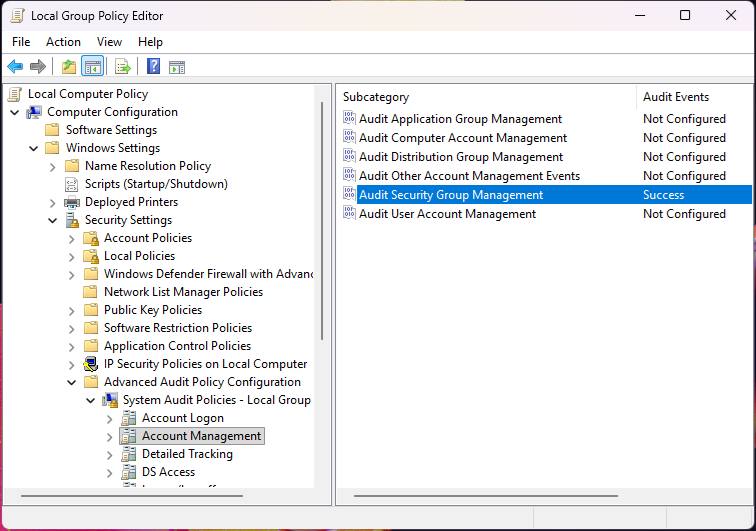
This ensures that group membership changes (such as adding a user to the Administrators group) are logged by the system and forwarded to Wazuh.
Rules
The rule definitions below implement the logic described in the table above.
<group name="local,windows">

  <rule id="100203" level="13">
    <if_sid>60154</if_sid>

    <!-- NON WORKING HOURS -->
    <time>5 pm - 7 am</time>

    <description>OL: user added to local admin group on Windows (out of working hours)</description>
  </rule>

  <rule id="100204" level="13">
    <if_sid>60109</if_sid>

    <!-- NON WORKING HOURS -->
    <time>5 pm - 7 am</time>

    <description>OL: New Windows user added or enabled on the system (out of working hours)</description>
  </rule>

</group>
Note: To apply this, edit your custom rule definitions here:
/var/ossec/etc/rules
Only two custom rules are defined in this scenario. The reason for this is that Wazuh already provides built-in rules for both user creation and privilege escalation events:
| rule.id | rule.description |
|---|---|
| 60109 | User account enabled or created |
| 60154 | Administrators Group Changed |
The own rules shown above (ID: 100203, 100204) extend the alert chain by triggering when user creation or privilege escalation occurs during non-working hours. This is implemented using the time option in the rules.
Visualize
To visualize and filter Windows events, we can use the dashboard created in the previous session during the Linux investigation.
By selecting built-in rules related to user creation or Administrator group membership changes on Windows agents—or by selecting our custom rules (e.g., events occurring outside working hours) in the control panel—we can further investigate these alerts.
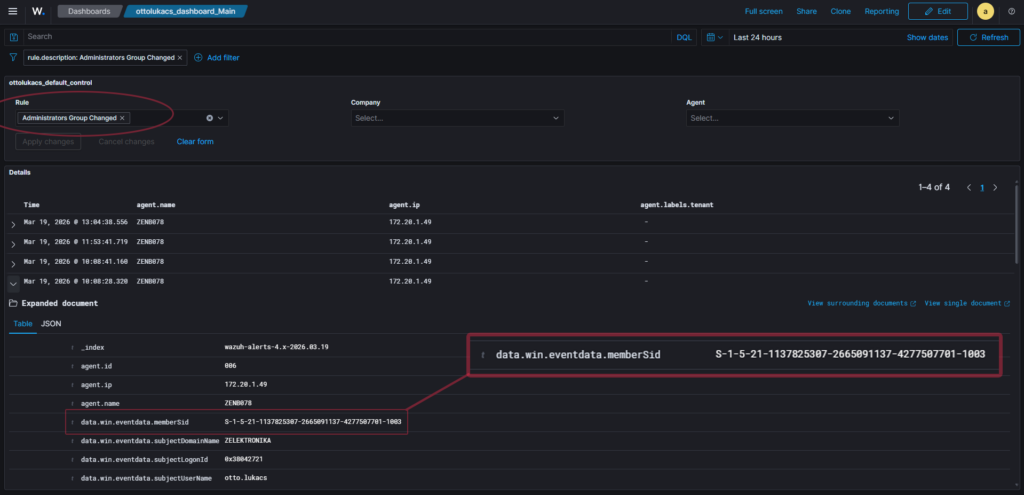
As shown in the image, the privilege escalation event does not include the username of the affected account. Instead, only the memberSid field is available. To resolve this, the following PowerShell command should be executed on the affected workstation or within the domain to retrieve the corresponding username.
PS C:\Users\lukacso> (New-Object System.Security.Principal.SecurityIdentifier("S-1-5-21-1137825307-2665091137-4277507701-1003")).Translate([System.Security.Principal.NTAccount])

Value
-----
WIN-DESKTOP\testuser
Copy the displayed memberSid value into the following PowerShell command to retrieve the username affected by privilege escalation.